
Malicious Browser Extension Detection: What SecureLint Checks and Why It Matters
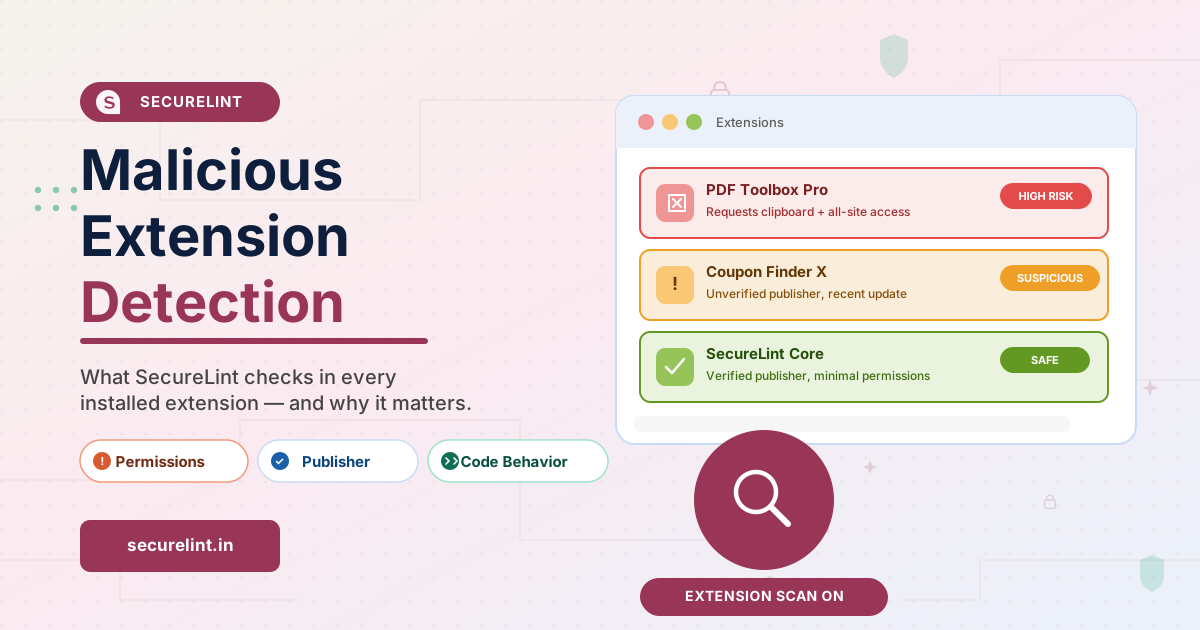
Attackers have discovered that browser extensions are the perfect Trojan horse. A legitimate-looking productivity tool with thousands of five-star reviews can silently read every password you type, intercept your session cookies, and exfiltrate data to an attacker-controlled server — all while Chrome shows a green padlock and no security alert fires.
Recent campaigns like ShadyPanda (43 million installs), ZoomStealer, GhostPoster, and the Cyberhaven supply-chain compromise have put browser extension security at the top of every security team's agenda. SecureLint gives you real-time visibility and active blocking — right inside the browser, where the threat actually lives.
Why malicious extensions are so dangerous
Browser extensions run with elevated privileges that normal web pages cannot access. A Chrome extension with the right permission set can:
- Read and modify every page you visit, including banking and SaaS dashboards
- Access
document.cookieand steal authenticated session tokens - Intercept all outgoing network requests and inject data before they leave the browser
- Read clipboard contents, capturing passwords copied from a password manager
- Capture form inputs in real time, including username and password fields
- Exfiltrate API keys, AWS credentials, and database passwords visible in open tabs
Unlike malware installed on the operating system, extensions bypass most endpoint detection tools. Traditional EDR agents look at processes, file system events, and network sockets — they have no visibility into JavaScript running inside a browser extension sandbox.
How a legitimate extension becomes malicious overnight
The most dangerous attack vector is not a newly-created fake extension — it is a trusted extension that has been compromised after installation. There are three common paths:
- Phished developer account — An attacker phishes the credentials of an extension developer, pushes a malicious update to the Chrome Web Store, and within hours every browser with that extension installed receives the malicious payload automatically.
- Extension acquisition — Attackers purchase popular but under-maintained extensions from their developers, then publish a malicious update to the millions of existing users.
- Supply-chain dependency injection — A malicious package is introduced into a library used by an extension's build pipeline, hiding malicious code inside an otherwise clean-looking update.
What SecureLint checks on every installed extension
SecureLint performs a multi-signal analysis on every extension present in your browser, combining threat intelligence, static permission analysis, and behavioral signals:
- Known-bad signature matching — SecureLint maintains a continuously updated index of known-malicious extension IDs, manifest hashes, and content-script fingerprints. Any extension that matches is flagged immediately, regardless of whether it is still listed in the Chrome Web Store.
- Permission risk scoring — Each permission and host pattern is weighted by its abuse potential. Combinations like
<all_urls>+cookies+webRequestproduce a high composite risk score. - Ownership change detection — SecureLint tracks the publisher identity of each extension. A change in publisher name or update URL is a red flag that the extension has been acquired or compromised.
- Install method auditing — Extensions installed via sideloading (pushed by local software) or developer mode (loaded from disk) are flagged, as these bypass the Chrome Web Store entirely.
- Unlisted / removed status — When Chrome Web Store removes an extension, SecureLint detects that it has been delisted and alerts you, even though Chrome does not automatically uninstall extensions that are removed from the store.
- Version anomaly detection — A sudden major version bump with no matching changelog, especially shortly after a change in extension ownership, is a known precursor to a malicious update.
Step 0 — Enable malicious extension detection in SecureLint
Before anything else, make sure known-bad extensions cannot execute in your environment. In the SecureLint admin console, navigate to Controls → Extension Security and set the detection mode to Block.
- ✅Off — No checks run. Not recommended.
- ✅Monitor — Detection events are generated and surfaced in the Detections dashboard but the extension is not blocked. Use during initial rollout to understand your baseline.
- ✅Block (recommended) — The extension is disabled in every browser where SecureLint is installed and users cannot re-enable it. Access to the Web Store listing is also blocked to prevent manual reinstall.
Detection events are classified by severity based on whether the extension was already active when it was flagged:
- Low — Extension was installed but never enabled. SecureLint prevented execution before any harm occurred.
- Medium — Extension was active but has now been disabled by SecureLint. The window of exposure was limited.
- High — Extension is currently active and running (typically because the control was in Monitor mode). Immediate manual investigation is required.
Step 1 — Build a real-time extension inventory
You cannot manage what you cannot see. SecureLint automatically builds a complete, real-time inventory of every extension installed across every browser where the SecureLint extension is deployed.
For each extension, SecureLint tracks:
- Extension name, ID, and current version number
- All declared permissions and host permissions
- Install method: managed (pushed by IT), manual (user-installed from store), sideloaded (installed by local software), or development (loaded from disk in developer mode)
- Publisher identity and update URL (to catch ownership changes)
- Which users and browsers have the extension installed
- Whether the extension is currently enabled or disabled
- Web Store listing status (active, unlisted, or removed)
- Install count and historical ownership data
This inventory is the foundation for every subsequent risk management decision. Without it, your security team is flying blind.
Step 2 — Risk-assess extensions using SecureLint data
With a full inventory in hand, use SecureLint's extension dashboard to identify and prioritize risky extensions. Focus on:
- High-permission extensions from unverified publishers — An extension that requests
<all_urls>andcookiesfrom an unverified publisher with fewer than 1,000 installs is a significant risk. - Sideloaded or development-mode extensions — These bypass the Chrome Web Store entirely. Unless you explicitly authorized the software that installed them, they should be treated as suspicious and investigated immediately.
- Extensions with recent ownership changes — Filter the inventory by “Publisher changed in last 90 days” to surface acquisitions that may precede a malicious update.
- Unlisted or delisted extensions — If Chrome Web Store has removed an extension, there is usually a reason. These should be removed from all browsers immediately.
- Extensions used by very few employees for non-critical tasks — A niche tool used by two people for an optional workflow represents attack surface that is rarely worth keeping.
Step 3 — Create an allowlist to control which extensions can run
Once you have completed your risk assessment, establish a formal allowlist — a set of approved extension IDs that employees are permitted to run. Everything not on the list is blocked.
In the SecureLint Enterprise admin console, navigate to Controls → Extension Policy → Allowlist and add the extension IDs you have approved. You can also define a blocklist for specific high-risk extensions you want to explicitly prohibit even if not on the known-malicious list.
Two practical approaches to building the initial allowlist:
- Start from the current inventory (recommended for most teams) — Add every extension that is currently running to the allowlist, enable blocking for everything else, and then progressively remove extensions that fail your risk assessment. This is the least disruptive approach because no extension is disabled in one go.
- Build a minimal allowlist from scratch — Define only the extensions that are strictly necessary for business operations and block everything else immediately. More disruptive short-term, but produces a significantly smaller attack surface from day one.
When an employee attempts to use a blocked extension, SecureLint displays a customizable block screen with your company-branded messaging and a link to your extension request workflow. Users can submit a request; the security team reviews and approves or rejects it from the admin console.
Step 4 — Monitor for risky changes on an ongoing basis
Extension management is not a one-time event. The threat landscape changes every week as extensions are acquired, updated, and compromised. Configure SecureLint to alert your team on:
- New malicious extension detections — Any extension newly added to the threat intelligence list that is installed in your environment
- Permission escalation on existing extensions — An extension that requests broader permissions in a new update than it had in the previous version
- Publisher or ownership changes — Any extension whose update URL or publisher identity has changed since last check
- New sideloaded extensions — Any extension installed by local software rather than through the Chrome Web Store, especially on managed devices
- Extensions removed from the Web Store — Any extension in your approved inventory that has been delisted
SecureLint integrates with your SIEM and SOAR via webhook and REST API, so detection events can flow directly into your existing Splunk, Datadog, or Elastic incident response workflows without any manual export.
Additional security tips for browser extension management
Disable browser profile syncing for extensions on work devices
By default, Chrome syncs extensions across every browser where a Google profile is signed in. This means a malicious extension installed on a personal, less-secure device can automatically appear in a work browser the moment a user signs into their Chrome profile. Disable extension sync for managed Chrome instances via Google Workspace Admin under Chrome → Settings → Sync.
If you have deployed the SecureLint allowlist, this is less of an issue because extensions synced from personal browsers will be blocked on managed devices. But for teams that have not yet completed allowlist setup, disabling sync provides an important early safeguard.
Apply the principle of least privilege to extension installs
Before approving any extension for your allowlist, ask: does this extension need access to all websites, or only specific ones? Many extensions work perfectly well when their host permissions are restricted to specific domains via chrome://extensions → Details → Site access → On specific sites. Narrowing host permissions dramatically reduces the blast radius if the extension is ever compromised.
Review development-mode extensions immediately
Development-mode extensions — loaded from a local folder with Chrome's developer mode enabled — bypass the Chrome Web Store entirely. They may be legitimate (a developer testing their own extension) or they may be malicious (an attacker who has installed a custom extension via a phishing payload). SecureLint flags these automatically. Unless you have explicitly authorized the developer mode extension, treat it as a high-priority investigation.
Frequently asked questions
How does SecureLint detect malicious browser extensions?
SecureLint cross-references every installed extension against a continuously updated threat intelligence list of known-malicious extension IDs and hashes. It also computes a composite risk score based on permissions, host patterns, publisher identity, install method, and Web Store listing status. Extensions that match known-bad signatures are blocked immediately; high-risk extensions are surfaced for manual review.
Can SecureLint block an extension that was safe yesterday but turned malicious today?
Yes. SecureLint continuously monitors all installed extensions against live threat intelligence. The moment a previously-trusted extension is flagged — for example because an attacker pushed a compromised update — SecureLint generates a detection event and, if Block mode is enabled, disables the extension across every browser in your organization before it can execute.
What permissions indicate a particularly risky browser extension?
The highest-risk permission combinations are: <all_urls> host access combined with the cookies API (enables session token theft), webRequest (enables traffic interception), tabs (reads page content), and clipboardRead (captures copied passwords). SecureLint computes a composite risk score from all permission signals and surfaces the most dangerous extensions first.
Does SecureLint build an inventory of all installed extensions across my team?
Yes. SecureLint provides a real-time inventory of every extension installed across every browser where the SecureLint extension is deployed. The inventory includes name, ID, version, permissions, host permissions, install method, publisher identity, and Web Store listing status — across all browsers and operating systems in your organization.
How do I set up an extension allowlist with SecureLint?
In the SecureLint Enterprise admin console, go to Controls → Extension Policy. Add the extension IDs you have approved to the allowlist. Extensions not on the list are blocked from executing, and users see a customizable block screen. The policy is browser-agnostic and does not require MDM or Group Policy configuration — it is enforced directly through the SecureLint extension.